Shipping from China to Every Market
When all orders ship from China by default, international shipping generally takes longer, especially for customers farther away.
Shipping products from China to the US can leave customers waiting longer for their orders. DSers lets you set up different suppliers for the same product in each market you sell to. For your US market, you can choose a supplier with stock in a US warehouse. You can do the same for other markets, choosing suppliers that ship from local or nearby warehouses to help shorten delivery times.
Get Started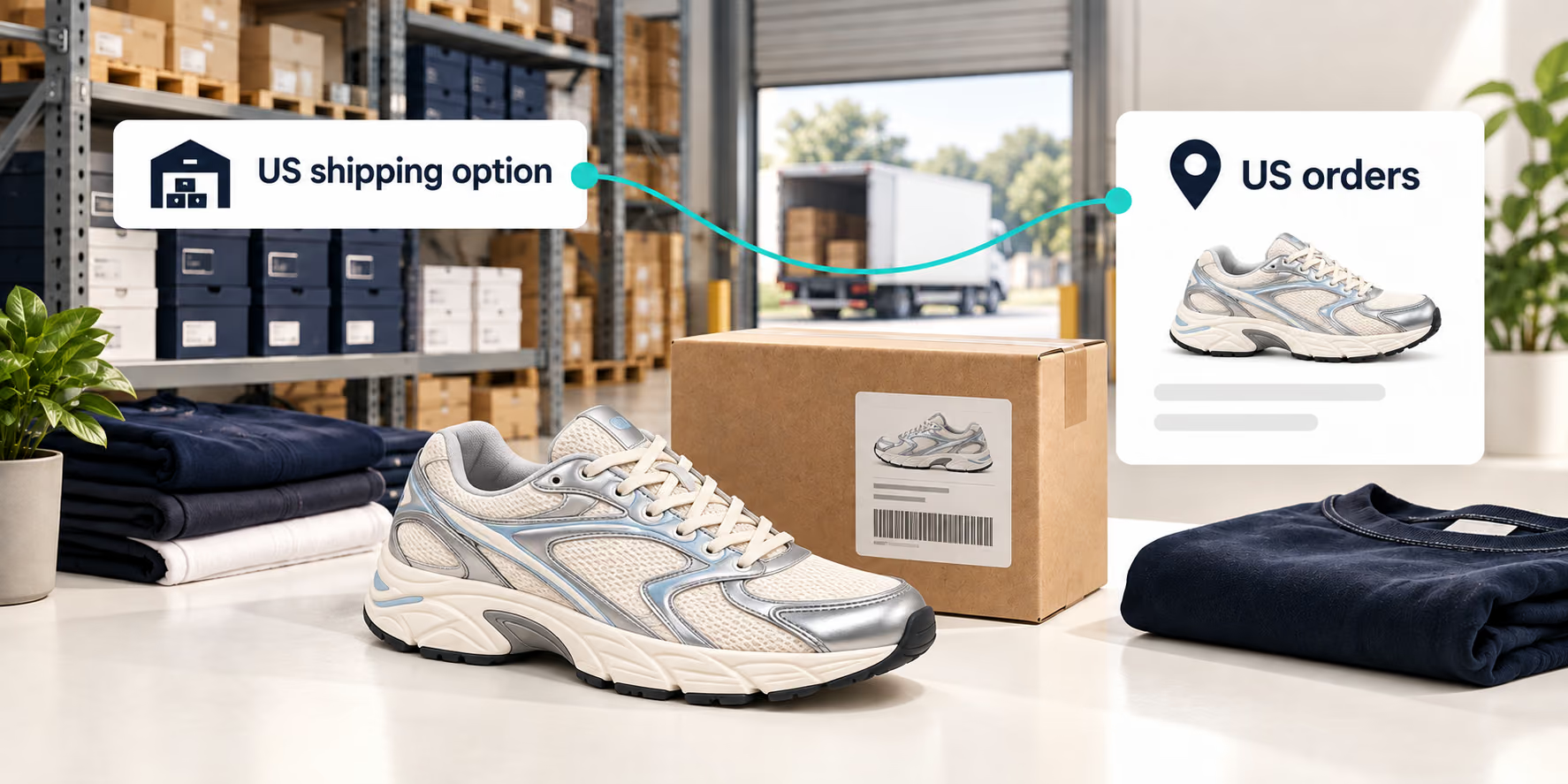
DSers Country-Based Supplier Selection lets you choose different suppliers for the same product based on where your customers live. For example, you could use a supplier with US stock for American customers and a different supplier for customers elsewhere. DSers calls this setup Advanced Mapping.
Connect each product in your store to multiple suppliers that ship from different locations, and set up which supplier to use for each market. When an order comes in, DSers matches it to the supplier you’ve set up for the shipping destination, helping you serve customers with stock closer to them.

When searching for a US dropshipping supplier, check the product options or shipping details for an option to ship from the United States.
Before choosing that supplier, check stock, shipping costs, and delivery estimates for the exact size and color your customer will buy. Ask the supplier about anything the listing leaves unclear. A US warehouse option is only useful if the item you need is available there and can be shipped to your customer.
Still comparing product sources? Explore Supplier Optimizer.
Keep your existing supplier as the default, or set up separate suppliers for the markets where you want a different shipping origin.
When all orders ship from China by default, international shipping generally takes longer, especially for customers farther away.
Set up suppliers that ship from local or nearby warehouses for each market. Shorter shipping distances can help orders reach your customers sooner.
Actual delivery times depend on stock availability, processing time, and the shipping service.
A navy size 8 shoe in your store should match that same option at the supplier. Link each store variant to the right size, color, and other product options. If the listing includes Ships From, choose the warehouse you intend to use too.
The same product variant can come from different suppliers depending on the customer’s country. DSers supports up to 10 country-and-supplier combinations per variant, so you can work with several suppliers without treating every market as if it has the same stock available.
If several SKUs use the same supplier, Bulk Edit lets you enter that supplier for them together. You still match each SKU to its own product options. This saves repeated supplier entry while keeping each size and color linked to the right item.
You don’t need to set up suppliers for every market at once. Start with a market that accounts for a large share of your orders. If many of your customers are in the US, set up suppliers with US warehouses for the products they buy most.
As your business grows in other markets, add suppliers for those markets too. This lets you improve shipping for your existing customers first, then extend your setup as demand grows.
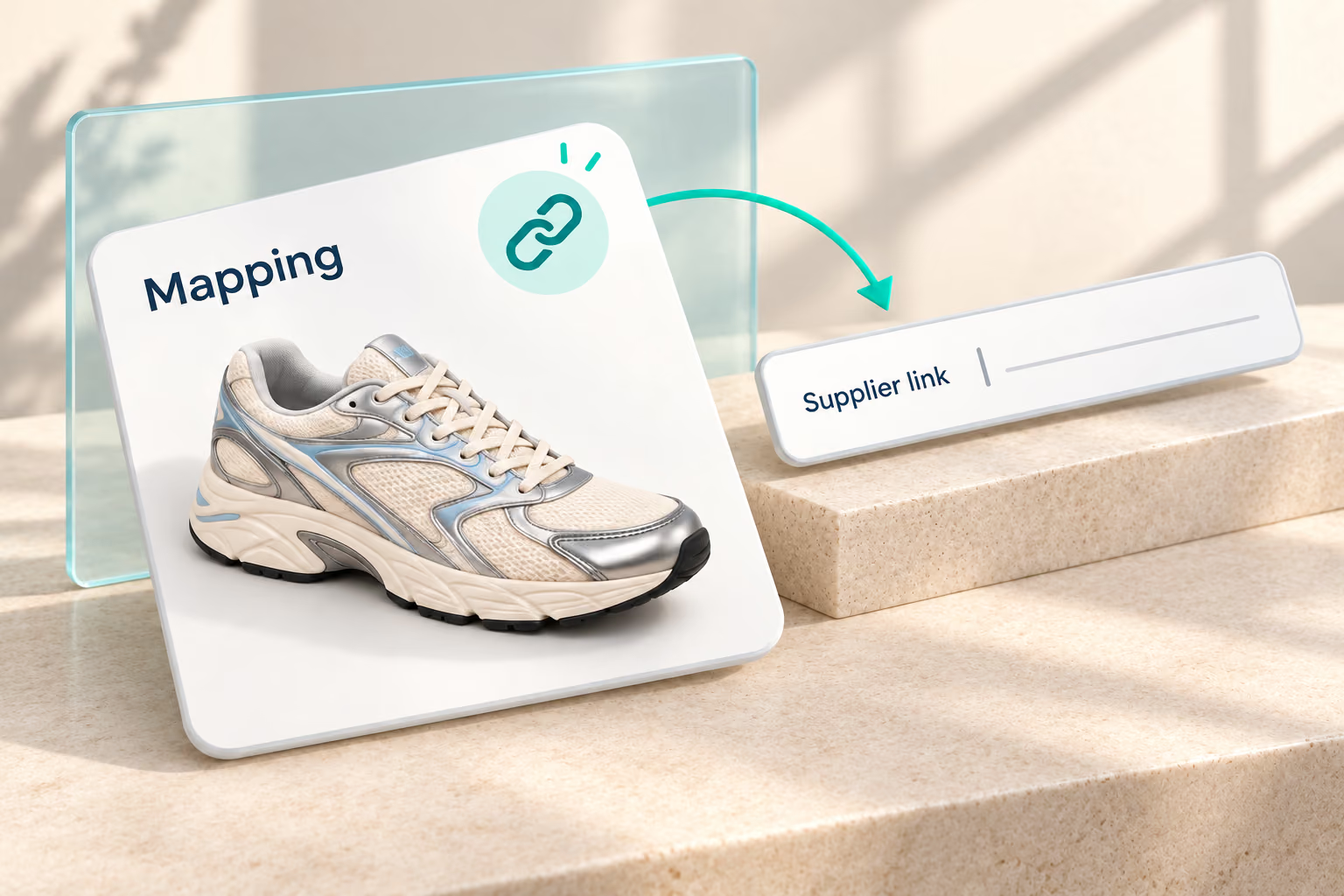
In My Products, hover over the product card and click Mapping. Add the supplier link, then select Advanced Mapping to choose suppliers by customer country.
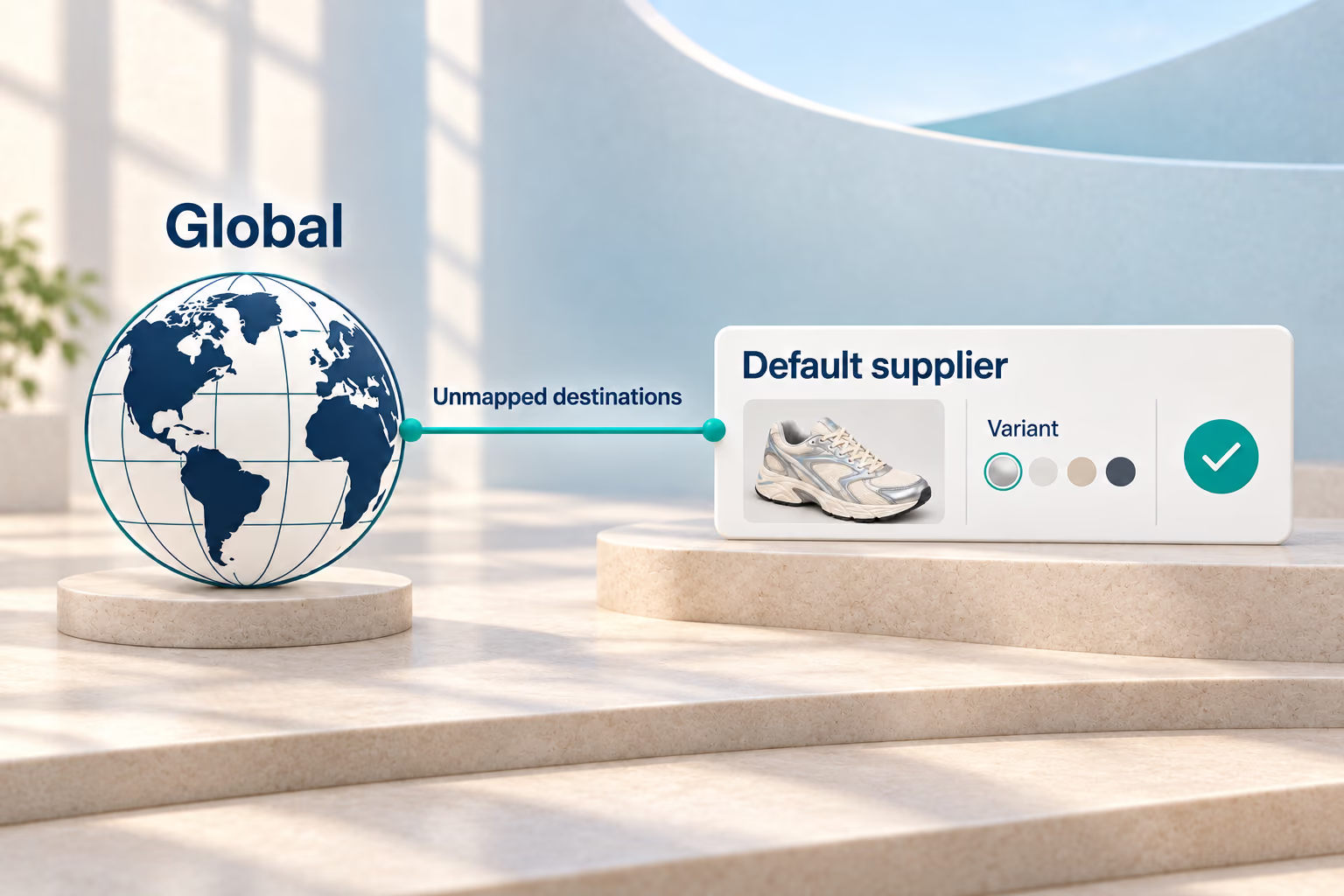
Under Global, choose and save a supplier, product options, and quantity for countries you do not set up separately. This default is optional but recommended.
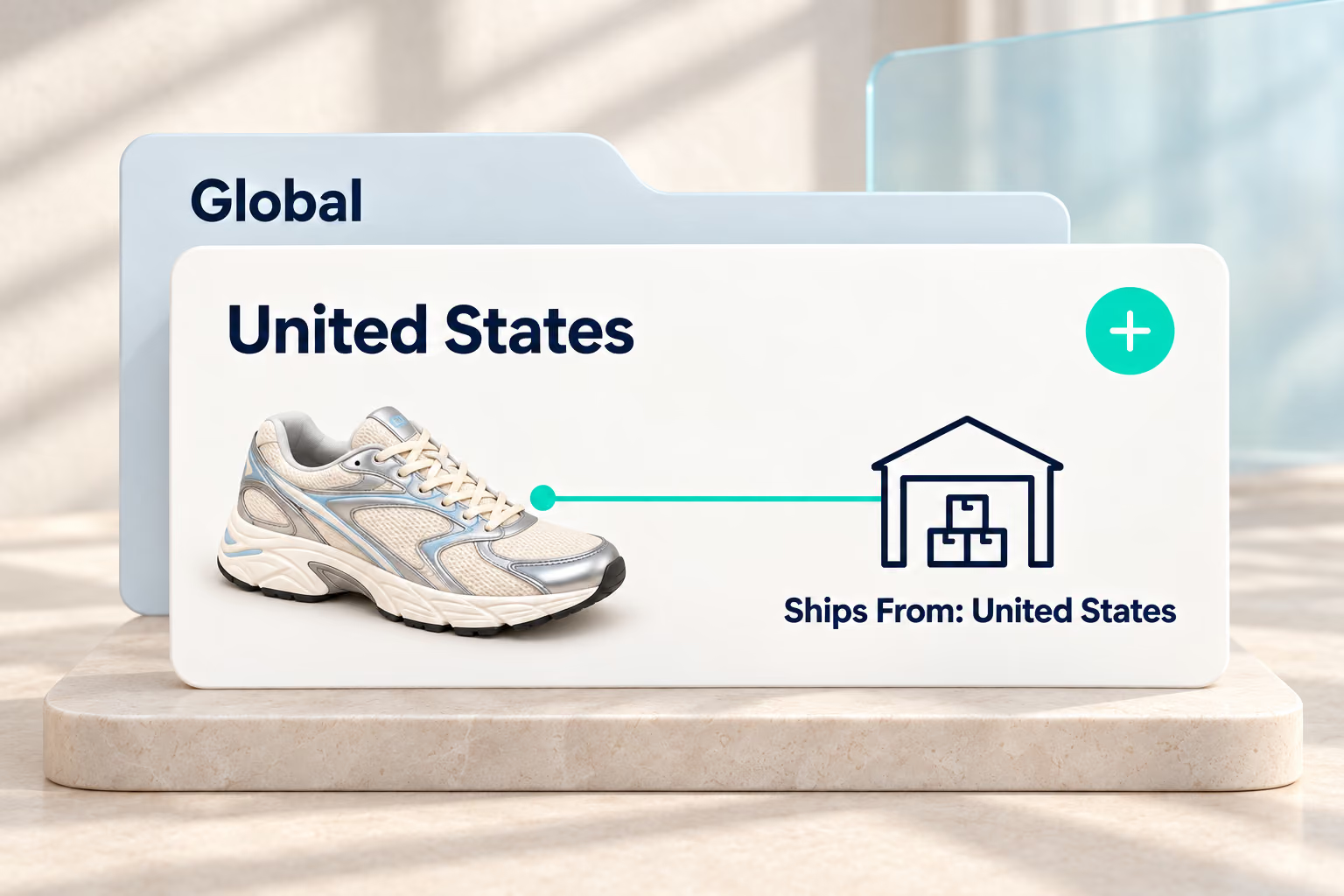
Use the plus sign beside Ship to to add United States. Match each store variant to the supplier’s product options, including Ships From where available.

Click Save at the bottom of the page. Select Advanced Mapping in the confirmation window and confirm to finish saving your supplier choices.
Have a US shipping option ready? Save the supplier you want to use and let DSers apply that choice to your US orders. Add more countries when you are ready.
On AliExpress, check the supplier’s product options or shipping details for an option to ship from the United States. Confirm that the size and color you need are available from US stock, then compare shipping costs and estimated delivery times.
DSers uses the supplier you’ve set up for the order’s destination country. You can connect the same store product to multiple suppliers and configure a supplier with US warehouse stock for US orders.
No. Shipping from a US warehouse can shorten the journey to US customers, but delivery also depends on stock availability, processing time, and the shipping service. Check the supplier’s delivery estimate before making promises to customers.
DSers uses your Global supplier mapping for destination countries without their own setup, if you’ve configured it. Global is an optional default; it does not override the supplier you’ve set up for a specific country.
No. DSers does not automatically switch to another country’s supplier mapping when stock runs out. You’ll need to update the affected product variant’s mapping to a suitable supplier.
DSers supports up to 10 country-and-supplier combinations per product variant. This lets you configure suppliers for several markets while matching each variant to the correct size, color, and available shipping origin.